
The forced replacement of the search engine by Yahoo in Chrome is almost never just a simple accidental setting change. In the majority of cases observed since 2024, the problem persists because a software component has written enforced policies into the Windows registry or because Google account synchronization propagates the hijacking across every connected device. Simply changing the dropdown menu in Chrome’s settings is not enough.
Locked Chrome Policies in the Windows Registry: The Real Lock
When Yahoo remains the default search engine despite several attempts to fix it, the first thing to check is the chrome://policy page. By loading it in the address bar, you display all active rules imposed on the browser. If a line mentions a search engine or a Yahoo URL, a third-party software has created entries in the PoliciesGoogleChrome registry key.
To remove these entries, open a command prompt in administrator mode and execute reg delete commands targeting this key. Also, delete the contents of the GroupPolicy folder under C:WindowsSystem32 and its equivalent GroupPolicyUsers. Restart Chrome, go back to chrome://policy and check that the list is empty.
We recommend prioritizing this step. As long as these policies remain active, any changes in Chrome’s settings will be overridden at the next launch. You will find an additional guide to undo this hijacking of Yahoo browser on the Zone Webmaster site with the exact commands to execute.
Verification After Registry Cleanup
After deleting the keys, type chrome://settings/search in the address bar. The default search engine dropdown should become editable again. If the field remains grayed out, a residual policy persists. Restart the check via chrome://policy and look for an HKLM or HKCU key that you might have missed.

Google Account Synchronization and Multi-Device Hijacking
A phenomenon documented since 2024-2025 explains why the problem returns even after a complete reinstallation of Chrome. The hijacking may be linked to the Google account itself, not just the local browser. Corrupted settings, and sometimes malicious extensions, are synchronized via the cloud on every device where the account is active.
The correct procedure is to first turn off synchronization in chrome://settings/syncSetup, then clean the browser locally (remove extensions, reset settings, clean the registry if necessary). Once the search engine is restored to Google locally, reactivate synchronization. Chrome will then propagate the healthy settings to the other devices.
Cases Where the Problem Persists After Logout
If Yahoo returns despite turning off synchronization, an extension is likely reinstalling itself via a corrupted Chrome profile. Create a new Chrome profile (chrome://settings then “Add”), associate it with the same Google account, and delete the old profile. This action forces the creation of a clean user directory without altered configuration files.
Remove Extensions and Programs Related to Yahoo Search
Cleaning up extensions remains a necessary step, but it should occur after checking the policies. Go to chrome://extensions and review each installed item. The extensions responsible for the hijacking rarely explicitly carry the name “Yahoo.”
Here are the clues that betray a rogue extension:
- The extension was installed on a date you do not recognize, often the same day as free software downloaded from a third-party site
- It requests permission to “modify your search settings” or “read and change your data on all sites”
- Its listing in the Chrome Web Store has very few reviews or has been removed from the store (noted as “unavailable”)
Remove any suspicious extension rather than simply disabling it. A disabled extension retains its files and can be reactivated by an external script. After removal, restart Chrome and check the default search engine in the settings again.
Programs Installed on the System
Some third-party applications reinstall the extension upon Windows startup. Open the “Apps and Features” panel (or “Programs and Features” on older versions) and sort by installation date. Any unknown program installed around the time the problem appeared should be uninstalled. A scan with an up-to-date antivirus completes this check.
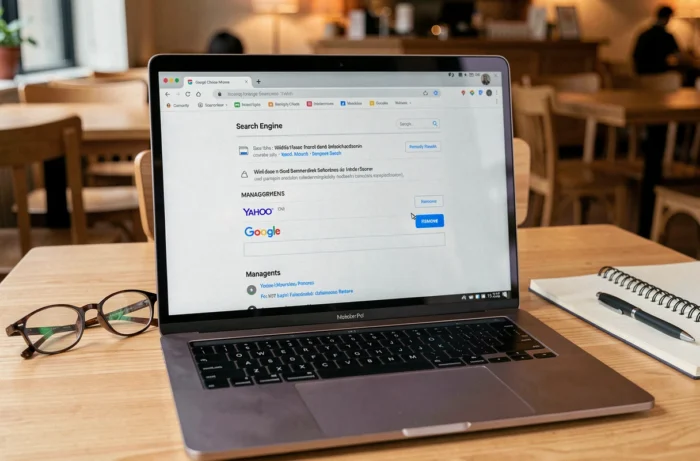
Restore Google as the Default Search Engine in Chrome
Once the root causes are eliminated, changing the search engine finally becomes sustainable. In Chrome, proceed as follows:
- Open
chrome://settings/searchand select Google from the “Search engine used in the address bar” dropdown - Click on “Manage search engines and site search,” then remove any Yahoo entries present in the list
- Also check the “On startup” section in the settings to ensure no Yahoo page is set as the homepage
Removing Yahoo from the list of available search engines prevents any residual script from reselecting it. If the removal option is grayed out, it means a Chrome policy is still active: return to the registry step.
Complete Reset as a Last Resort
Resetting Chrome restores all factory settings without affecting bookmarks or saved passwords. Go to chrome://settings/reset and click on “Restore settings to their original defaults.” This action disables all extensions and deletes cookies. It does not clean the Windows registry, which is why we emphasize addressing the policies beforehand.
The hijacking to Yahoo in Chrome is rarely just a simple configuration annoyance. Dealing with the Windows registry, isolating Google account synchronization, and then cleaning extensions and programs in that precise order avoids unnecessary back-and-forths. Once this sequence is executed, the default search engine remains stable.