Underlining a word in a text message does not work like in a word processor. Standard messaging apps (Messages on Android, iMessage on iPhone) do not offer an “underline” button in their toolbar. The question then shifts to alternative methods, the effectiveness of which varies depending on the app used and the recipient’s operating system.
Underline Compatibility Across Messaging Apps
Native underlining does not exist everywhere. Some apps handle bold or italic text but ignore underlining. Others only accept plain text, without any formatting.
| Application | Bold | Italic | Native Underline | Unicode Underline |
|---|---|---|---|---|
| iMessage (iPhone) | No | No | No | Yes (copy-paste) |
| Google Messages (RCS) | No | No | No | Yes (copy-paste) |
| Yes (*bold*) | Yes (_italic_) | No | Yes (copy-paste) | |
| Messenger | No | No | No | Yes (copy-paste) |
| Telegram | Yes | Yes | Yes (native menu) | Yes |
Telegram is the only mainstream app to offer native underlining accessible from the formatting menu. For all other apps, an indirect method must be used.
Those looking to underline a word in a text message with Codyx will find a detailed guide for each operating system, complete with step-by-step screenshots.
Unicode Generators: Underline Text in Any SMS
The most universal method relies on combined Unicode characters. The character U+0332 adds a line under each letter it is attached to. Online services like Zumatools allow you to type a word, select the “underline” variant, and then copy the result.
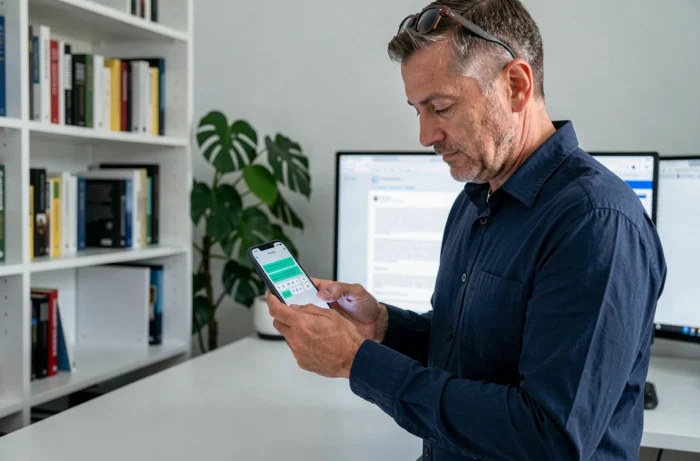
The resulting text looks like classic underlined text, but it is actually special characters stacked under each letter. The difference is invisible to the recipient in most cases.
Steps to Use a Unicode Generator on Smartphone
- Open a Unicode text generator in the phone’s browser (Zumatools or equivalent), type the word or phrase to be underlined
- Select the “underline” style from the options provided, then press the copy button
- Return to the messaging app (SMS, WhatsApp, Messenger) and paste the text into the input field
- Check the preview before sending, as some Unicode characters may display differently depending on the recipient’s keyboard and system
This method works on both iPhone and Android, and the result displays even if the recipient uses a different phone. However, the line under the letters may appear slightly misaligned on some older models.
Underlining on iPhone via the Notes App and iMessage
iMessage does not offer any underlining option in its input bar. The Notes app on the iPhone, on the other hand, has a formatting button that includes underlining (the “U” icon in the toolbar).
The technique involves writing the underlined text in Notes, selecting it, copying it, and then pasting it into iMessage. The problem is: the underlined formatting does not survive the copy-paste to iMessage. The text arrives in plain form, without any formatting.
This behavior is explained by the fact that iMessage treats messages as plain text, without style tags. Copying from Notes only transfers the textual content, not the formatting.
Functional Alternative on iPhone
To work around this limitation, two viable options remain on iPhone:
- Use a Unicode generator (method described above), which produces visible underlining in all text fields
- Install a third-party keyboard app with built-in formatting, available on the App Store, which allows formatting text directly from the keyboard
- Use Telegram for exchanges where formatting matters, as this app handles underlining natively

Accessibility Features and Automatic Underlining on Android
Some users notice underlined words in their SMS without applying any formatting. On Android, the accessibility settings “Select to Speak” can highlight or underline the word being read on the screen.
This underlining is not integrated into the message itself. It is a local display, visible only on the user’s phone who has activated the feature. The recipient sees nothing unusual.
On iPhone, the equivalent feature is called “Spoken Content”. It produces the same temporary visual effect in messaging apps, without altering the actual content of the sent message.
Google Messages and Text Formatting
Google Messages recently introduced conversation themes and customizable backgrounds. However, text formatting (bold, italic, underline) is still not available in the app, even in RCS mode.
Users of Google Messages who want to underline a word in a text message remain dependent on the Unicode method or third-party apps like “Message Editor,” available on the Play Store, which allows composing formatted text before sending it via any app.
Underlining in a text message remains an indirect manipulation across nearly all messaging apps. The Unicode copy-paste method remains the most reliable, compatible with all smartphones and apps. For regular use, Telegram remains the only app to offer this option directly.